
Google Calendar Background
Personalize your Google Calendar with custom background images, colors, and visual effects.
Personalize your Google Calendar with custom background images, colors, and visual effects.
Google Calendar Background is a Chrome extension that lets you add beautiful background images or colors to your Google Calendar. It works right inside the calendar page — no separate windows or tabs needed.
Follow these steps to start using the extension:
in the top-right corner of your browser to open the quick settings panelClick the extension icon in your browser toolbar to open the popup panel. This is your main control center:
At the top-right of the popup, there is a toggle switch labeled ON or OFF. Click it to:
Scroll through the theme cards in the "Current Theme" section. Each card shows a preview of the theme. Click a card to apply it immediately. The active theme has a purple border around it.
Choose how the calendar text appears over your background:
| Mode | Description |
|---|---|
| Light | A thin white layer sits between the background and calendar text. Best for dark or colorful images. |
| Dark | A thin dark layer sits between the background and calendar text. Best for bright or light images. |
Use the three sliders to fine-tune how your background looks:
| Filter | Range | What it does |
|---|---|---|
| Blur | 0 – 20 px | Softens the background image. Increase to make text more readable. |
| Brightness | 50% – 150% | Makes the background lighter or darker. 100% is the original brightness. |
| Opacity | 20% – 100% | Controls how visible the background is. Lower values make it more transparent. |
Click Reset next to the section title to return all filters to their default values.
Below the filter sliders, you'll find quick options to set your own background without creating a full theme:
Single Image:
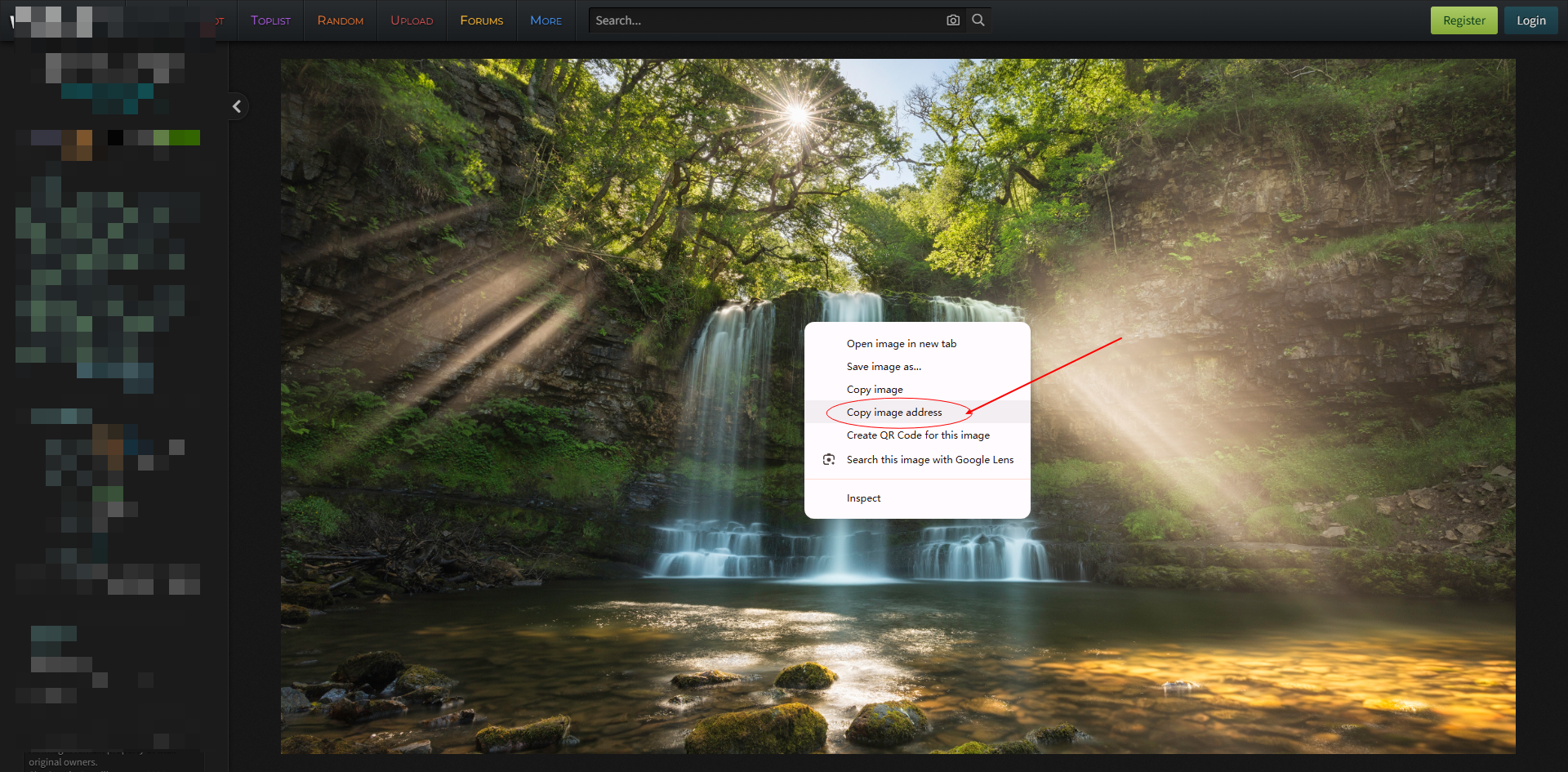
Solid Color:
Click "More Settings" at the bottom of the popup to open the full settings page, where you can create and manage custom themes.
Click "More Settings" in the popup, or go to Chrome's extension management page and click "Extension options" to open the full settings page.
At the top of the page, a preview box shows how your background will look. Click any theme card to see a live preview. The preview also reflects your current overlay mode and filter settings.
These themes come pre-installed with the extension:
| Theme | Description |
|---|---|
| Default Rainbow | 12 different pastel colors that change automatically each month — red in January, orange in February, and so on through the year. |
| Star | A single scenic image used as the background all year round. |
Click "Use" on any theme card to activate it.
Create and manage your own themes:
To create a new theme:
To manage existing themes:
Same as the popup — choose Light or Dark overlay mode. Changes are applied in real time.
Same three sliders as the popup (Blur, Brightness, Opacity). The preview box updates as you drag the sliders. Click "Reset" to restore defaults.
| Feature | Description |
|---|---|
| Master Switch | Turn the entire background effect on or off without losing any settings |
| Built-in Themes | Pre-made themes included with the extension — ready to use instantly |
| Custom Themes | Themes you create yourself with your own images |
| Single Image Mode | Set one image (URL or local file) as your calendar background |
| Monthly Rotation | 12 images that rotate automatically based on the current month |
| Solid Color Mode | Use any solid color as your background instead of an image |
| Blur Filter | Soften the background image for better text readability (0–20px) |
| Brightness Filter | Make the background lighter or darker (50%–150%) |
| Opacity Filter | Control background transparency (20%–100%) |
| Light Overlay | Adds a white semi-transparent layer to help text stand out |
| Dark Overlay | Adds a dark semi-transparent layer for a night-mode feel |
| Local File Upload | Upload images from your computer — auto-compressed for performance |
| Batch Import | Upload up to 12 images at once for monthly themes |
| Effect Preview | See how your background looks before committing |
| Real-time Updates | All changes appear instantly — no need to click a save button |
If you have questions, suggestions, or encounter any issues, feel free to contact us:
We typically respond within 24 hours.